
A shared mailbox can be useful for addresses such as hello@, accounts@ or support@. It gives a team one place to handle messages without giving everyone access to another employee’s mailbox.
Shared mailbox permissions are easy to forget after setup. Without an owner, clear permissions and a review process, you can end up with a mailbox that has outdated permissions and no clear responsibility.
Give the mailbox a business owner
Assign a person who is responsible for checking the mailbox settings, reviewing access and making sure important messages are handled. The owner does not need to answer every message. They do need to know who can.
Keep a second authorised administrator available for staff leave, illness or an urgent access problem. A shared mailbox has no separate password to recover. The backup administrator should be able to reassign Full Access and Send As permissions using their own authorised Microsoft 365 account. Store that procedure with the business’s access records.

Review who can access it
Give each person their own Microsoft 365 account. Add people to the shared mailbox through their named account, then remove access when their role changes or they leave.
- Review Full Access, Send As and Send on Behalf permissions.
- Check any folder-specific access as well as the mailbox-level permissions.
- Remove former staff and contractors promptly.
- Check whether forwarding or automatic replies expose sensitive information.
Full Access allows someone to read and manage messages. Sending requires Send As or Send on Behalf permission. Give staff only the permissions they need.
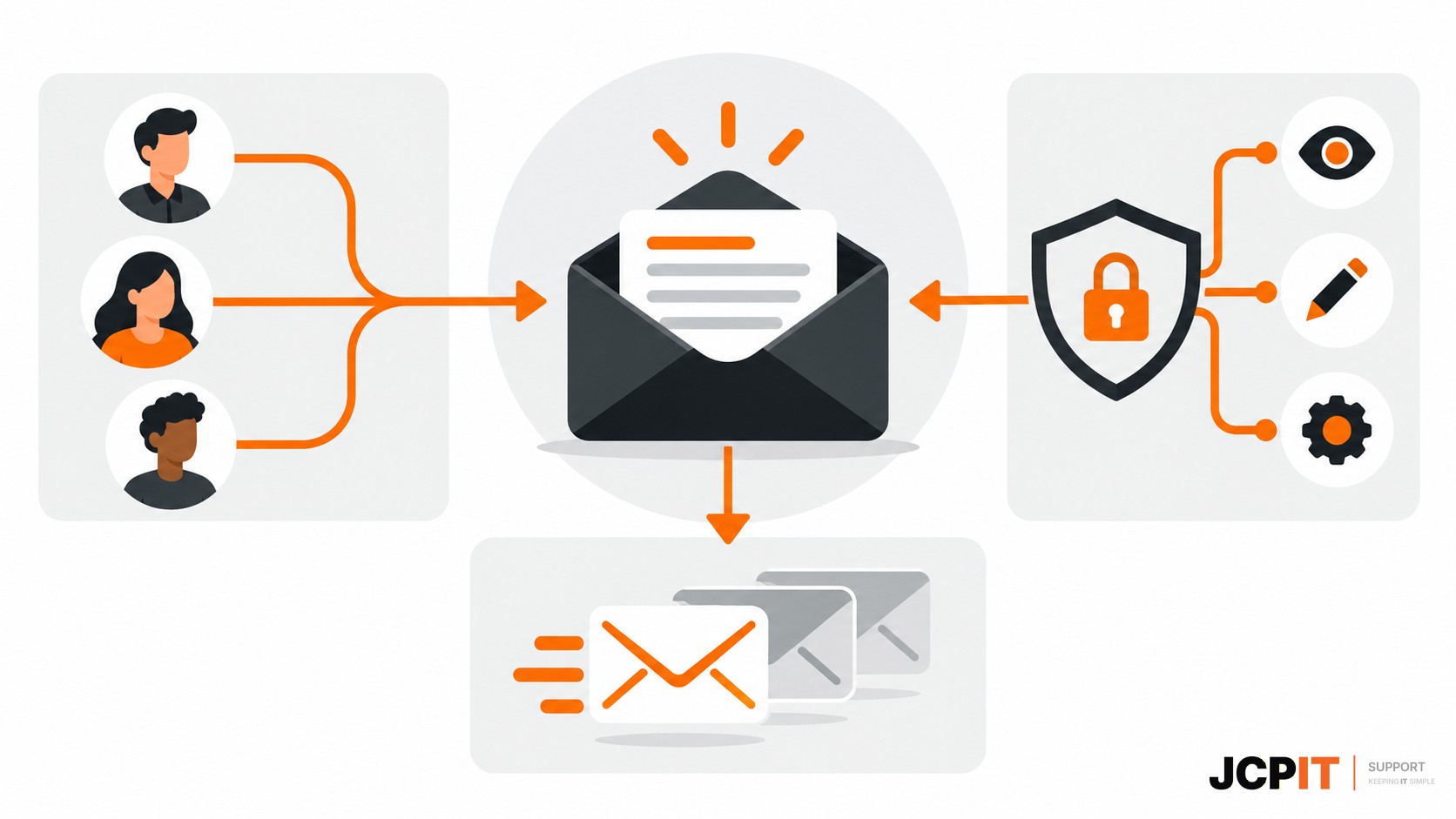
Decide how messages should be handled
Set a simple rule for ownership. For example, the person who starts a customer request keeps responsibility until it is resolved, or messages are assigned through your ticketing system.
Check that replies are saved in the shared mailbox’s Sent Items folder so colleagues can see what has already been sent. Without that visibility, two people may reply to the same customer or assume someone else is handling an urgent request.
Check recovery and capacity
Make sure authorised people know how to regain access if the mailbox administrator is unavailable. Review the Microsoft 365 audit information available to your organisation so you can investigate unusual access, unexpected sending activity or permission changes.
Microsoft’s licensing and storage rules can vary as a shared mailbox grows or needs advanced features. Check the current requirements before using one as a high-volume service desk or archive.
A practical review checklist
- Confirm the mailbox has a business purpose and a named owner.
- List Full Access, Send As, Send on Behalf and folder-specific permissions.
- Remove access that no longer matches a person’s role.
- Check forwarding, automatic replies and Sent Items behaviour.
- Confirm a second authorised administrator can restore permissions.
- Record the owner, access list, exceptions and next review date.
Review the mailbox quarterly and after staff or supplier changes. Ask JCPIT to check who can access your shared mailboxes and how your team handles replies, then provide an approval-ready remediation list.