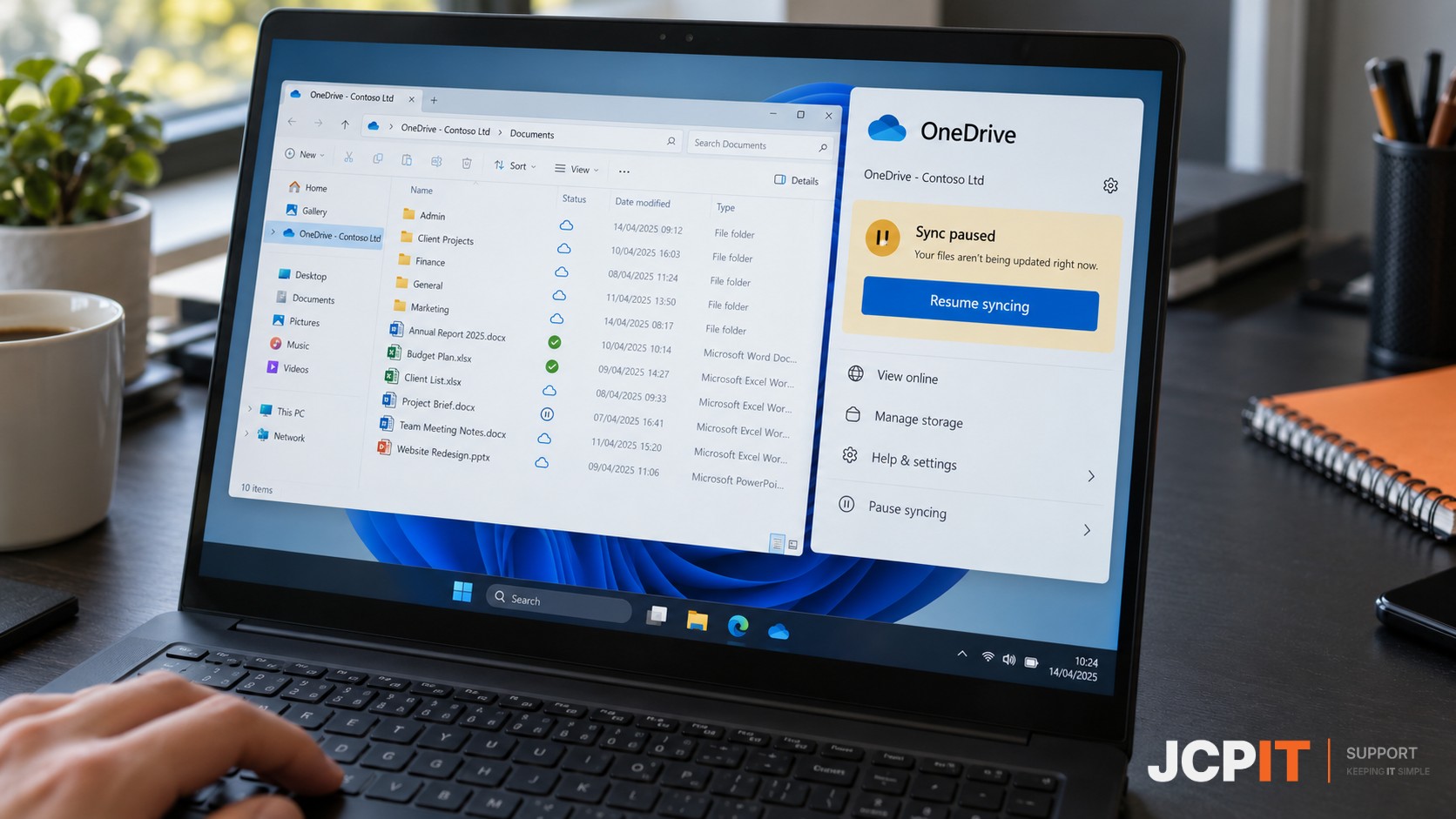
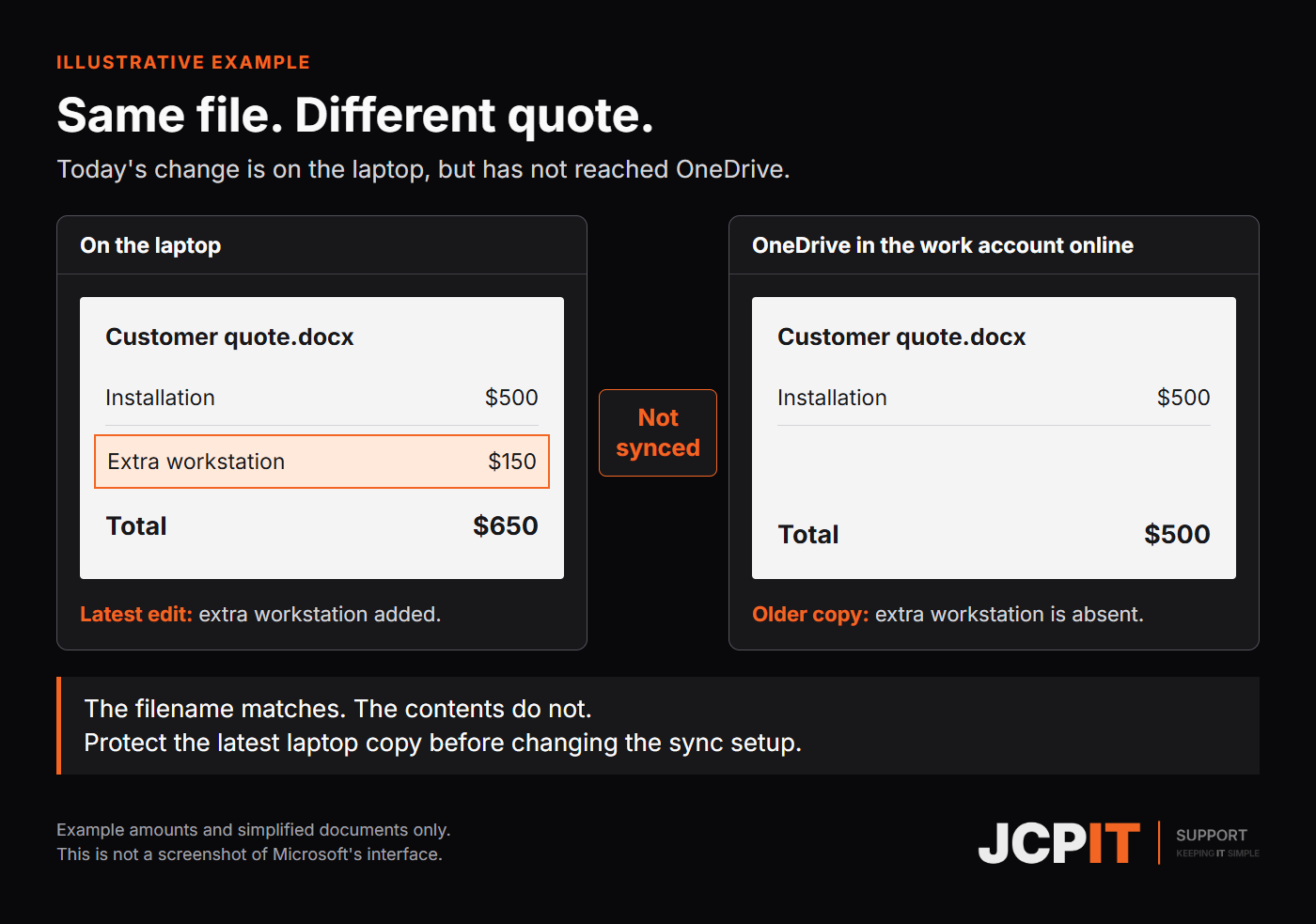
Before handing a laptop over for repair or replacement, check that your latest important work has reached the business’s cloud account. A customer quote opening on your laptop only tells you that you can access that copy. Check the browser version for your latest changes. You can use this check whenever you suspect work has stopped syncing.
Check the account and location
Pick a recently edited quote or job schedule. Note its filename and folder. Select the OneDrive cloud icon in the taskbar or menu bar, check the signed-in account, then choose View online. Navigate to the folder and filename you noted. This may open the account’s home page rather than the file itself. See Microsoft’s OneDrive sync troubleshooting guide.
Confirm the browser shows the intended work account and organisation. It may already be signed into a personal account. If the file belongs in a shared SharePoint library, check that location. Ask support if you are unsure, and do not move shared files into your own OneDrive.
Read the sync status
Microsoft’s OneDrive icon guide explains these common symbols:
- Paused symbol: files are not currently syncing.
- Circular arrows: syncing is in progress, including uploads or downloads.
- Red circle with a white cross: a file or folder cannot sync. Open OneDrive to read the error.
These symbols help explain the status. Still check the contents of the browser copy.
Compare your latest changes
- Save your changes in the application and finish editing the file.
- Find the same file in the correct business cloud location using your browser.
- Open it in viewing or read-only mode where available. Do not edit the browser copy.
- Compare its contents with the laptop copy. Look for the latest quote amount or schedule entry. Use the modified date as a clue, not proof.
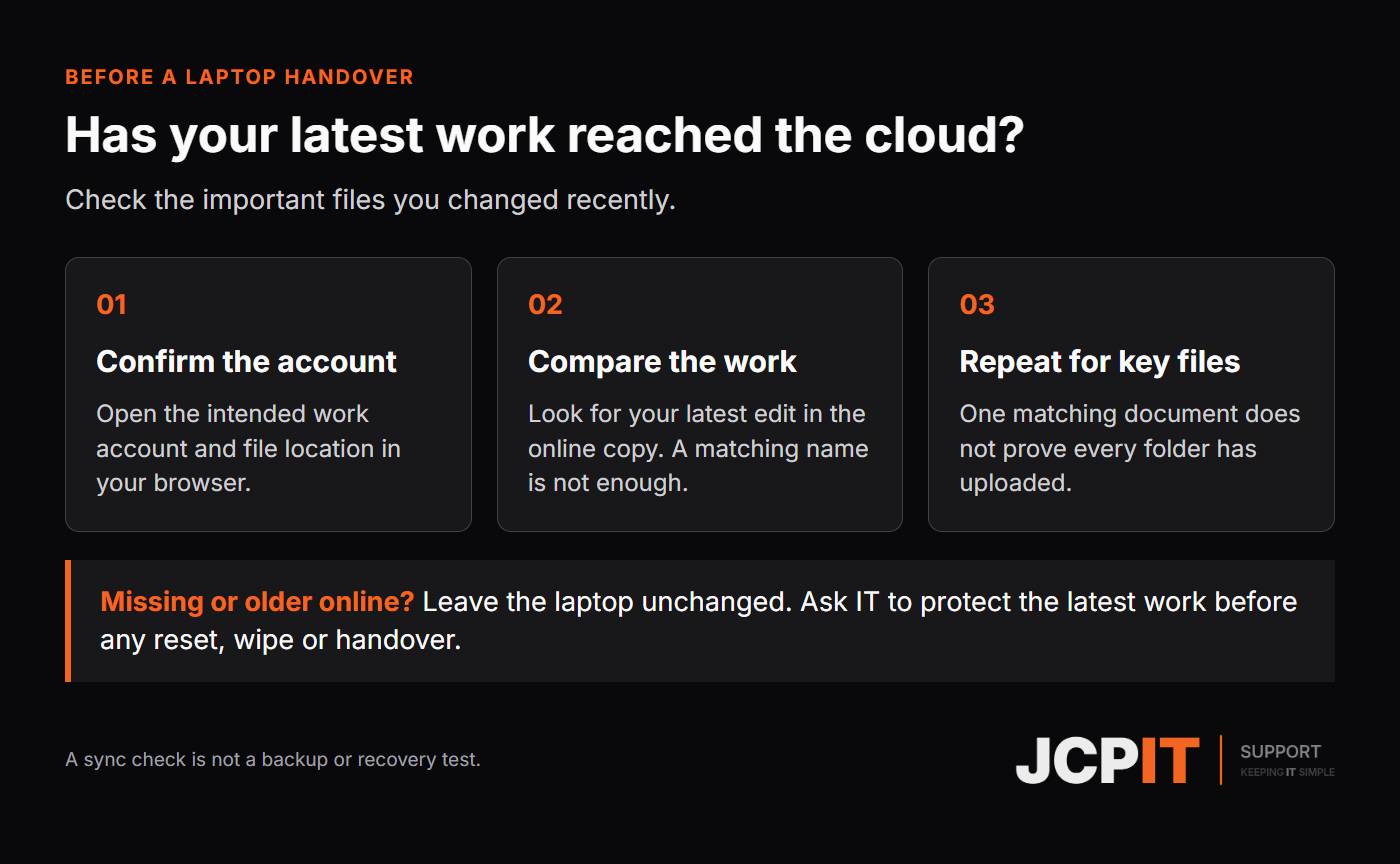
Before a laptop handover, repeat this for the important files you recently changed. One matching document does not establish that every file or folder has uploaded. Flag recent work in Downloads, Desktop or other local folders to support too. Do not assume those folders are part of the business’s sync setup.
Protect missing or newer local work
If the browser copy is missing or older, do not delete the laptop copy, overwrite the online version or clear folders to remove a warning.
Ask your IT provider to help copy the latest local work to a separate, approved location. Copy rather than move it, then open the preserved copy and check its contents before changing the sync setup.
Keep customer and staff information out of personal email, personal cloud accounts and unapproved USB drives. If you cannot verify the latest work online, postpone handover or wiping until support confirms the work is protected. Leave resets and reinstallations to support.
Act on the specific problem
Once any unsynced work is protected, address the cause. If you paused sync yourself to use a slow connection and are back on the usual work connection, follow Microsoft’s resume-sync instructions, then repeat the comparison. If someone else paused it, or OneDrive shows an error, check with support first.
For storage or sign-in errors, send support the exact message. Microsoft’s sync troubleshooting guidance covers these issues. Do not delete shared files or buy another subscription before the business account is checked.
Ready to hand over?
If the important online copies contain your latest changes, tell support what you checked and ask them to confirm the handover plan. If any are missing or older, stop and ask support to protect the work first.
Give support the details
Use your approved support channel, or contact JCPIT Support. Include your work sign-in email, never your password, device name, affected file and folder, last edit time, exact error and planned handover date. Say whether the browser copy is missing or older. Hide unrelated or sensitive information in screenshots.
This comparison checks only the files you inspected. It does not test recovery after deletion or damage. Read our guide to cloud storage and backup for that separate question.