# How to identify a phishing email before it reaches your team
Phishing emails are built to look ordinary. They may appear to come from a supplier, a bank, Microsoft 365, or someone inside your business. The message usually wants one quick action: click a link, open an attachment, share a password, or change payment details.
The safest habit is to slow down when an email creates pressure. A real business request can wait long enough to be checked.
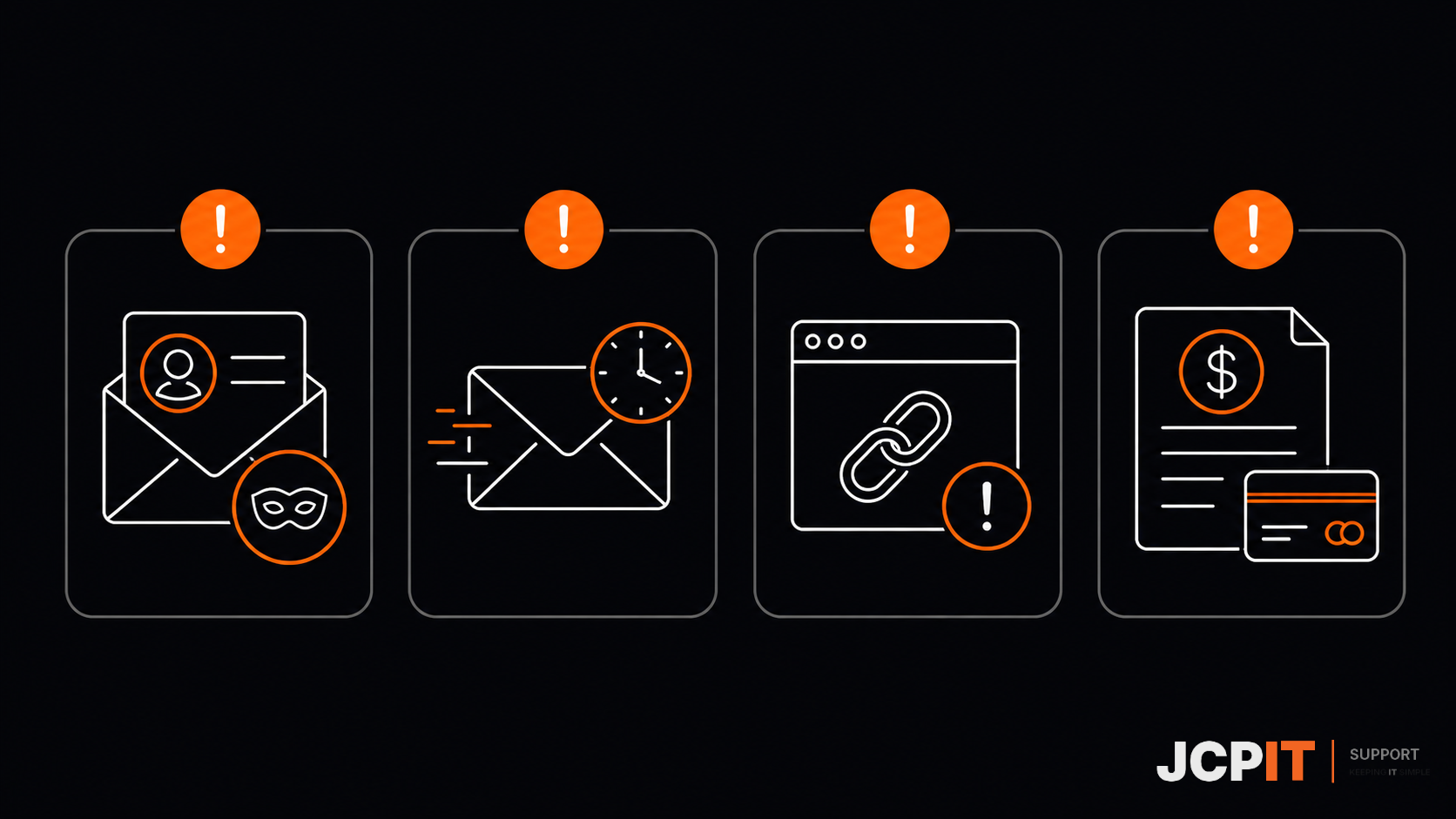
Four signs worth checking
1. The sender is close, but not quite right
Do not rely on the display name. Open the sender details and check the full address. An attacker may use a name such as “Accounts Team” while sending from a lookalike domain or an unrelated mailbox.
Also check the reply address. It can be different from the address shown in the message header.
2. The email is trying to rush you
“Pay this today”, “your account will be closed”, and “I need this in the next 10 minutes” are common pressure tactics. Urgency is not proof that a message is fake, but it is a good reason to verify it through a separate channel.
Call the supplier using a number you already have. Do not use the phone number in the email.
3. The link does not go where you expect
On a computer, hover over a link without clicking it. Check the destination that appears. Be careful with shortened links, spelling changes, extra words, and domains that only resemble the real service.
On a phone, press and hold the link if your mail app allows it. If you cannot inspect the destination safely, open the service through a saved bookmark or type the known website address yourself.
4. The request is unusual for that person
A message from a manager asking for gift cards, a supplier changing bank details, or a colleague asking for a password is unusual even when the writing looks perfect. Confirm the request in person or by calling a known number.

What to do if you are unsure
Do not reply, click, download, or forward the message to other staff. Report it using your organisation’s email reporting option or send it to the person who manages your IT. If it involves a payment or bank detail change, pause the payment until someone verifies the request.
If you clicked the link, act quickly. Close the page, tell your IT provider, and change the affected password from a known-clean device if you are instructed to do so. If you entered payment or banking details, contact the bank using its official contact details.
Deleting the email is not the first step. Your IT provider may need the original message and its headers to check whether other people received the same attack.
A short team rule
Before acting on an unexpected email, check the sender, the link, the request, and the pressure. If one part feels wrong, verify it another way.
That small pause will not catch every attack. It will stop many ordinary scams from becoming a business incident.
JCPIT Support helps Australian small businesses improve email security, account protection and staff awareness in plain English. Start with a Free Domain Scanner if you want help working out what to fix first.