If staff save work passwords in personal browser profiles, changing computers or removing access becomes harder than it should be. Fix that before debating Edge versus Chrome.
Both browsers can suit a small business. Edge may be simpler in a Microsoft 365 and Windows setup, while Chrome may fit a business centred on Google Workspace. The right choice is the one the organisation can manage consistently.
Keep work and personal browsing separate
Staff should use a work browser profile for business passwords, bookmarks and browsing data. That profile should be connected to the organisation's Microsoft or Google account, not a personal account.
Separating profiles reduces accidental sharing between work and home use. It also makes access easier to remove when someone leaves.
Turning on sync is a business decision. Check what information is synced, where it is stored and which settings the organisation can control.
Edge can fit a Microsoft 365 setup
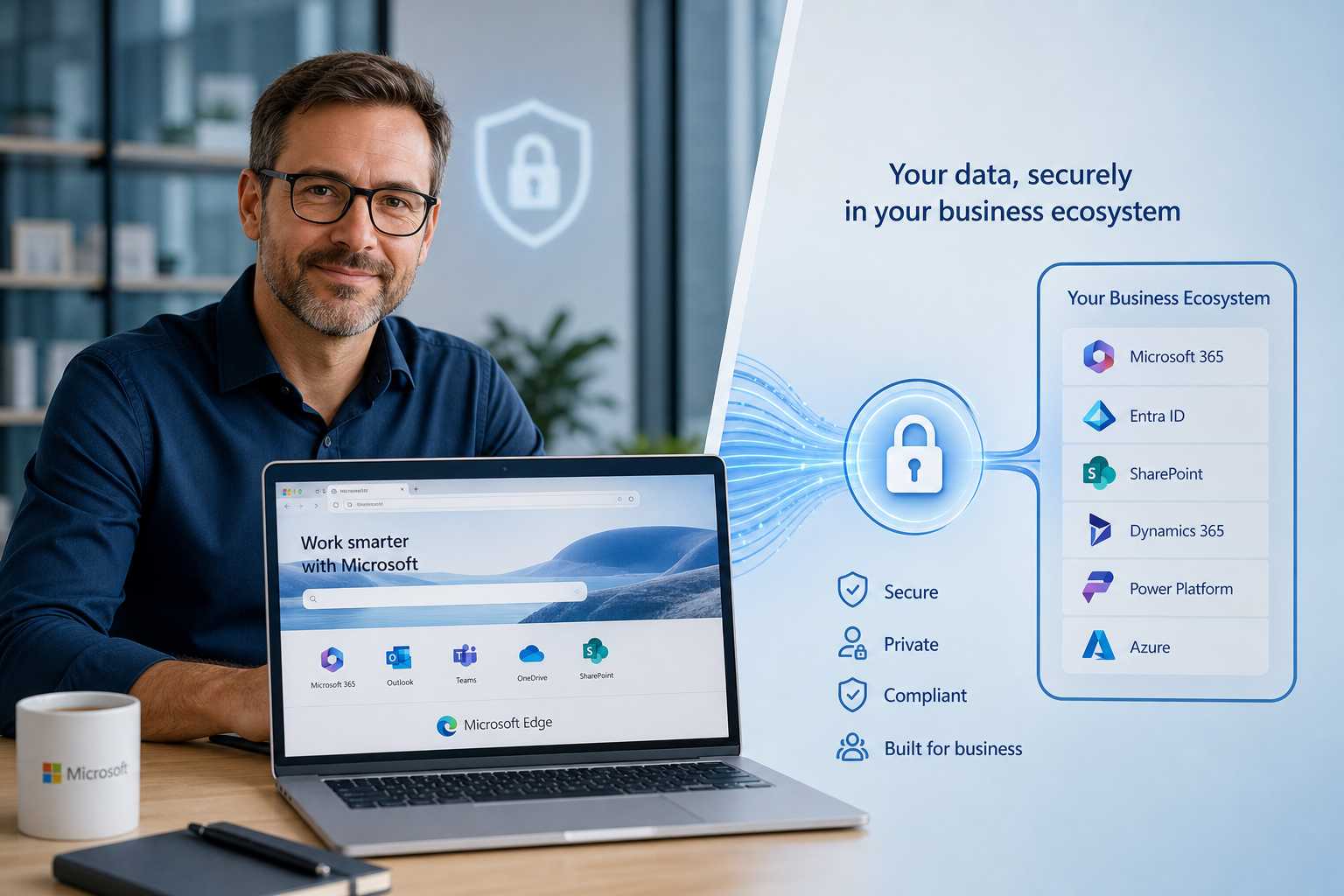
Edge can sign in with a Microsoft work account and integrates with Windows and Microsoft 365. For businesses that already manage staff and devices through Microsoft services, this can reduce the number of separate accounts and policies to maintain.
The available security and management controls depend on your Microsoft licences and setup. Installing Edge alone does not provide every business security feature.
Chrome can fit a Google Workspace setup
Chrome can be managed with a Google Workspace account. Businesses using Gmail, Google Drive and Google's device management may find that it matches their existing setup.
As with Edge, the controls available depend on the business account and configuration. A personal Google account should not be used as the main store for company passwords or business browser data.
Check the controls that matter
Whichever browser you choose, check that staff use managed work profiles, updates install promptly and only approved extensions are allowed. Decide whether password saving and sync are appropriate, then document how browser access is removed when someone leaves.
Extensions deserve particular attention. Install only those the business needs, review their permissions and remove unused ones.
Test before changing everyone
Most bookmarks can be imported between Edge and Chrome. Saved password migration needs more care because it may create extra copies of sensitive information.
Test important websites, browser extensions, printing and sign-in processes with a small group first. Some older business systems may only support particular browser settings.
Choose one managed standard
Supporting several unmanaged browsers makes updates and troubleshooting harder. Choose a standard browser for work, document the exceptions and keep personal profiles separate.
If work and personal browser profiles are mixed together, book a managed browser consultation with JCPIT Support. We will map the current profiles and extensions, then recommend a managed browser standard that fits the systems already in use.