
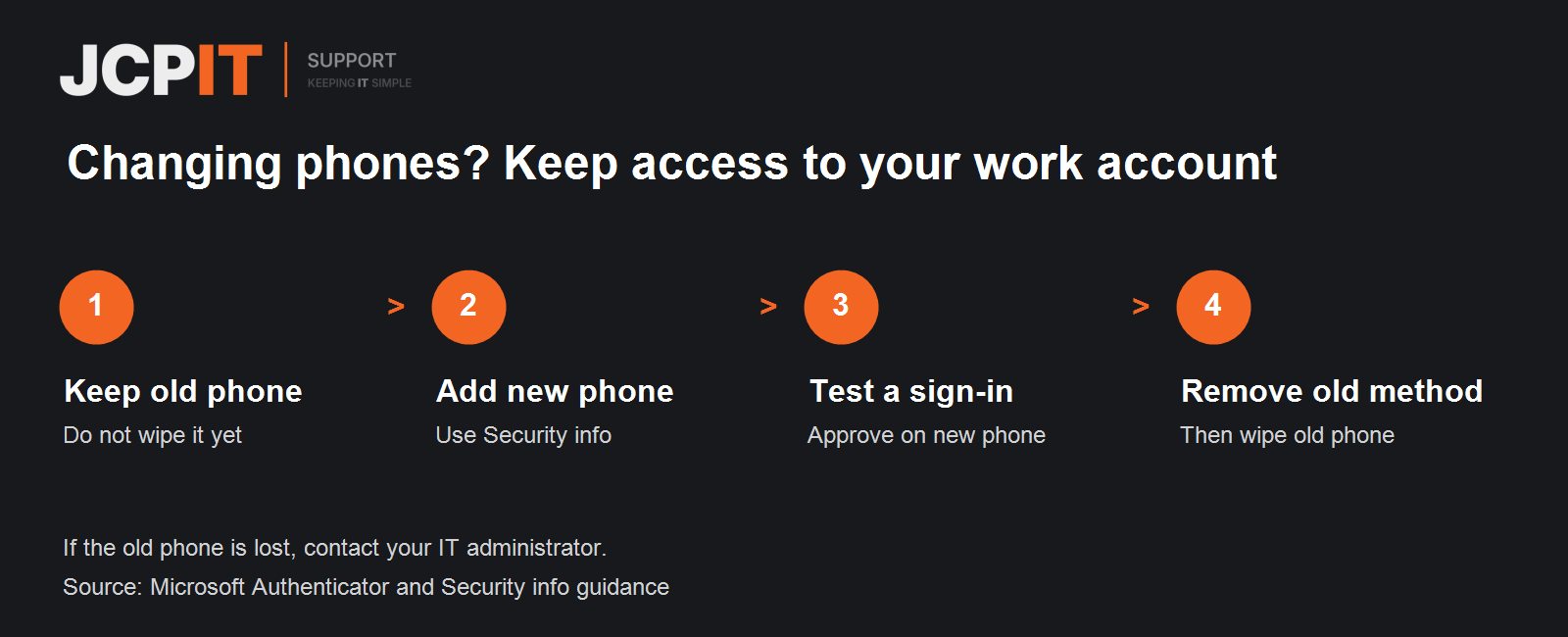
Your old phone may be the only device that can approve a work sign-in. Before you trade it in, return it or wipe it, set up Microsoft Authenticator on the new phone and test it.
Why restoring a backup is not enough
For a work or school account, an Authenticator backup restores the account name, but you still need to sign in again before you can use it. Treat each work account as something you need to set up and test on the new phone. Microsoft explains what Authenticator restores.
Before you change phones
Keep the old phone charged and available. For each work account, open Microsoft Security info on a computer. Check whether you have another sign-in method that works without the old phone, such as a security key or another method your organisation permits. If you are unsure how you would regain access, ask your IT provider before erasing the old device.
Add Authenticator to the new phone
- Install Microsoft Authenticator on the new phone.
- On your computer, sign in to Security info for the work account you want to move. Choose Add sign-in method, then Microsoft Authenticator. The setup will display a QR code.
- On the new phone, open Authenticator and choose Add account → Work or school account → Scan a QR code. Scan the code on your computer and complete the test prompt.
- Repeat for every work account in the app. If the options differ or registration is blocked, contact your IT provider.
These steps follow Microsoft’s Authenticator setup guide. Your workplace’s sign-in settings may change what you see.
Test it before you remove the old method
Start a fresh work sign-in that asks for Authenticator, and approve it on the new phone. Opening Outlook or Teams while you are already signed in does not test it. Check every work account before you remove anything.
Only after the new phone works should you remove the old phone’s Authenticator entry from Security info. If you cannot tell which entry is old, ask IT before deleting either. Then follow your workplace’s instructions for wiping or returning the old phone.
Old phone already lost, broken or wiped?
Contact your IT administrator promptly. If your organisation has enabled it, they may be able to issue a Temporary Access Pass, a time-limited code that helps you register a new sign-in method. Never approve a sign-in request you did not start.
If JCPIT manages your Microsoft 365, contact us before wiping, trading in or returning your old phone. We can help you check that your work accounts are ready on the replacement.